The passkey profile is configured. The target groups are set. The pilot went well. Now a few hundred or a few thousand people each have to register a passkey on their own device and start signing in with it.
Most organisations handle this step the way they handle every other user-facing change: IT writes an instruction, exports it as a PDF and sends it out. Larger organisations add a ticket per user. Both feel like progress. Neither can answer the question the project will be asked every week until 1 February 2027: who is finished, and who is left?
You would not accept that for a patch. A patch has a compliance state per device, and you chase only the devices that are left. This article is about applying the same standard to passkey enrollment.
LakeForest offers this as Guided Enrollment & Migration Tracking. See the guided enrollment offer →
A document is a one-way channel
A PDF is a reasonable tool for a small group with one device type. The limits show up with scale and variety.
- One document, many paths What a user sees after selecting “Add sign-in method” depends on the operating system, the browser and the passkey provider. A Windows computer, an iPhone, an Android phone and a physical security key are four different sequences of screens. One PDF either covers all of them and becomes a booklet, or covers one and is wrong for everyone else.
- It does not know the reader The user who registered a security key two years ago receives the same instruction as the user whose only method is SMS. Neither can tell from the document whether they need to do anything.
- It has no return channel A sent e-mail tells you the e-mail was sent. You learn about failures when the helpdesk phone rings, and you learn about successes by exporting registration data and reconciling it against a spreadsheet.
- It ages in the mailbox The registration screens change. The copy saved in March is still the copy somebody follows in November.
On Android, a personal profile and a work profile are isolated. Microsoft documents that a passkey works only in the profile where it was stored. A user can follow the instruction correctly, see a registered passkey on the Security info page, and still be unable to use it from the work apps. In Entra ID that user looks finished.
A ticket gives you a status that somebody typed
Opening a ticket for every user solves the “who is left” question on paper. Every user has a row and every row has a state.
The state is the problem. A ticket is closed when the user says they are done, or when an agent looks at the account and sees a passkey. The first is a statement, the second is a registration. Neither shows that the user signed in with the new method. Ticket state and Entra state are two separate records, and from the first day they drift apart.
The cost also scales the wrong way. Every user becomes a unit of helpdesk work, including the majority who would have completed the change without help.
Microsoft's registration prompt is a prompt
Entra ID has its own channel: the registration campaign, which asks a user to set up a passkey during sign-in. It is worth understanding exactly what it does, because many tenants are now running it in the Microsoft-managed state.
According to Microsoft's documentation, as of October 2026:
- The prompt appears after the user completes MFA in an interactive sign-in. It does not appear when the user is already signed in with SSO.
- In the Microsoft-managed state with passkeys as the target, the snooze period is one day and the number of snoozes is unlimited.
- A tenant can run one campaign for one method at a time, and the snooze duration is a tenant-wide setting.
- The check is made per operating system and browser combination, so the same person can be prompted on one device and not on another.
- Linux users and guest users are not prompted for passkeys, and native Android apps are not supported.
The campaign decides when to ask. It does not decide which passkey type fits a user group, it does not explain why the screen on a phone looks different from the screen on a laptop, and its settings hold no result per user. Whether a user registered, and whether they later signed in with the passkey, you read from registration details and sign-in logs.
It is a useful background mechanism. It is not a rollout plan.
Registered is not finished
All three channels end at the same place: a passkey is registered on the account, or somebody says it is.
Registration and use are separate facts in Entra ID, and they come from separate sources. Authentication method data shows that a credential exists. Only the sign-in log shows that a specific sign-in used it.
There is no shortcut on the method object itself. In our laboratory tenant on 27 August 2026, the beta lastUsedDateTime property on the FIDO2 method objects was still null after a successful sign-in with a passkey in Microsoft Authenticator on Android. Microsoft documents the property as optional. We treat it as informational metadata and do not use it to decide that a user is done.
If “done” means “registered”, you can reach 100 percent and still have users who sign in with an SMS code every morning. Decide which sign-in data proves completion before the first instruction is sent.
What guided enrollment changes
Guided enrollment replaces the document with a short web application that the user signs in to with their work account. Four things are different.
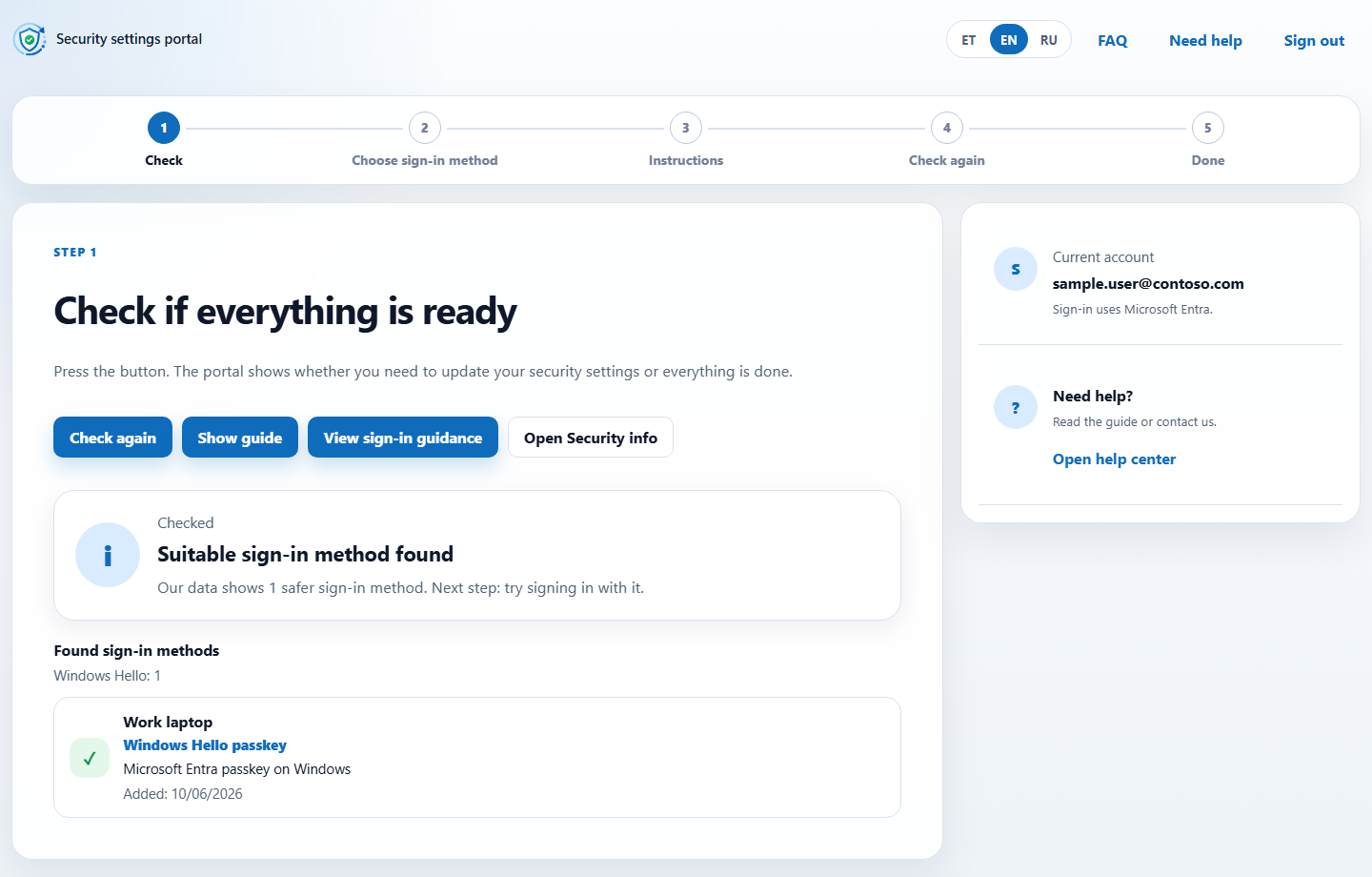
- It starts with a check, not with instructions The portal reads the signed-in user's own registered methods and tells them one of three things: nothing to do, a method is registered but not yet used, or an update is needed. Users who are already finished leave after one click.
- It shows only the paths the project allows The registration options are configured per project: a passkey on this Windows computer, a passkey in Microsoft Authenticator on a phone, a physical security key, or a subset. A user sees those choices and no others, in the language they work in. Each path is a short sequence of steps, and each step says what to do, what the user should see and where to confirm before moving on. The Android path includes the work profile check.
- Registration stays with Microsoft The portal does not create a passkey and never sees a PIN, a fingerprint or a face. It opens Microsoft's Security info page for the registration, and the user returns to the portal afterwards.
- Done comes from the sign-in log After registration, the portal asks the user to use the passkey at their next Microsoft sign-in and tells them they can close the page. A background process reads the organisation's Entra sign-in logs from its Log Analytics workspace and marks the user complete only when a successful sign-in used an accepted method after the user joined the project. A session that reused an earlier MFA claim does not count.
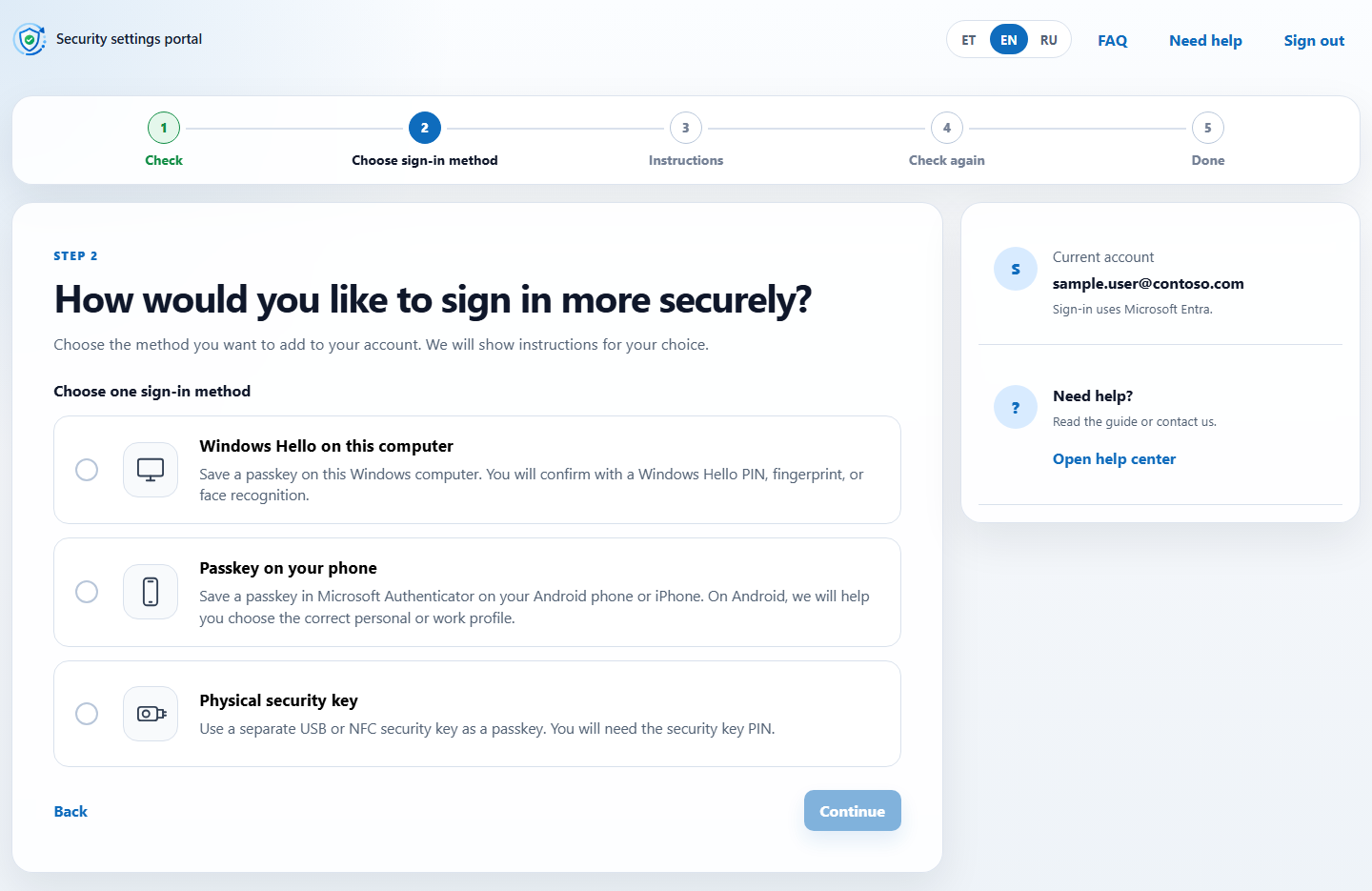
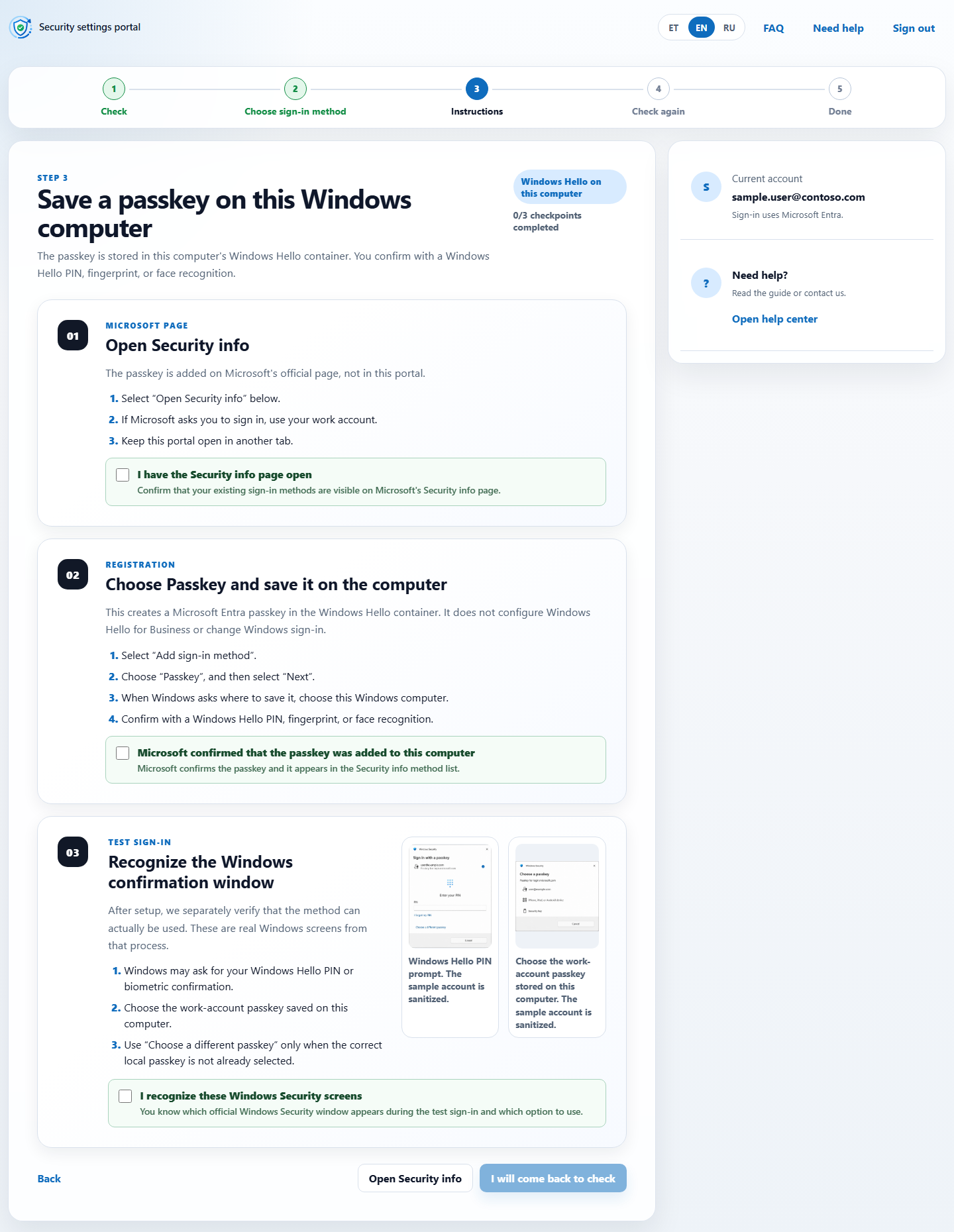
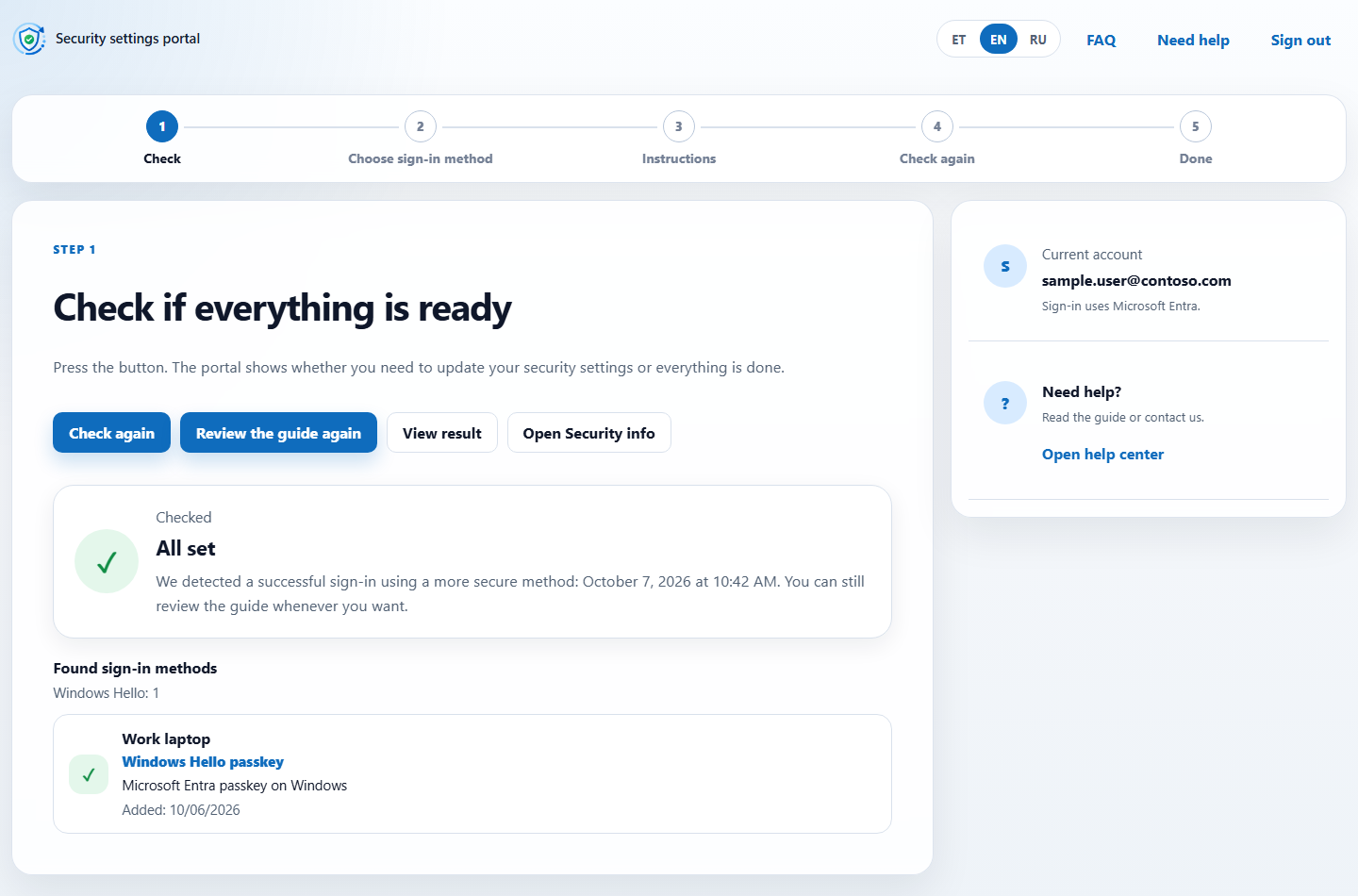
The result is a state per user that nobody typed: not started, registered, waiting for a first sign-in, complete, or asked for help. Follow-up goes to the users who are left, not to everyone again. A user who is stuck sends a help request from the portal, and IT sees the request next to that user's state.
Where it runs, and what it needs
A tool that reads authentication data deserves direct questions, so here are the answers.
- The portal is deployed into your own Azure subscription with your own Entra app registration. There is no shared LakeForest portal that your users or administrators sign in to.
- The user-facing part uses delegated permissions to read the signed-in user's own profile and passkey methods. The Microsoft Graph token stays on the server side and is not handed to the browser. There is no way to look up another user by name or ID.
- The portal does not remove SMS or voice methods. When and how old methods are removed is a project decision made per user group.
- Verification of use requires Entra sign-in logs in a Log Analytics workspace. If your tenant does not export them, completion can be based on registration only, and the report says so.
- Sign-in data arrives with a delay. The portal does not promise the user a number of minutes; it shows “pending” until the evidence is there.
The screenshots show our default design. Yours does not have to look like that. We adapt the portal to your organisation: logo, colours, layout, wording, languages, the registration options on offer and the instruction images for your devices. Users see a page that belongs to their own IT department, not a vendor tool.
When you do not need it
A tested instruction and a short session are enough for a small group with one device type and one passkey choice. That is a legitimate way to run a rollout, and it is what our migration offer includes by default.
Guided enrollment earns its place when at least one of these is true: you have more users than you can walk through one by one, several device types or languages need different instructions, or the team is already tracking people in a spreadsheet.
If you only read one section
Before you send the instruction, answer three questions:
- What is the state of each user today, and where does that state come from?
- Which data will prove that a user is finished: a registration, or a sign-in?
- Who are the users who will not respond to the first message, and how will you find them without contacting everyone again?
If the answers are “a spreadsheet”, “we will check Security info” and “we will send it again”, you have a document, not a rollout.
Want to see it with your own numbers? Tell us how many users are in scope, which devices they use and which languages they work in. In a 30-minute call we walk through the portal on a sample account and tell you whether guided enrollment fits, or whether a tested instruction is enough. Request a call →